Outlook - How to change E-mail Signature:
About:
This guide explains how to create and manage your email signature in Outlook on Windows (Classic & New) and Mac. It also shows how to manually add a signature to individual messages if you do not set it to appear automatically.
A suggested signature style is provided at the end of this guide.
Windows Outlook (Classic):
1, Click File → Options → Mail → E-Mail Signatures
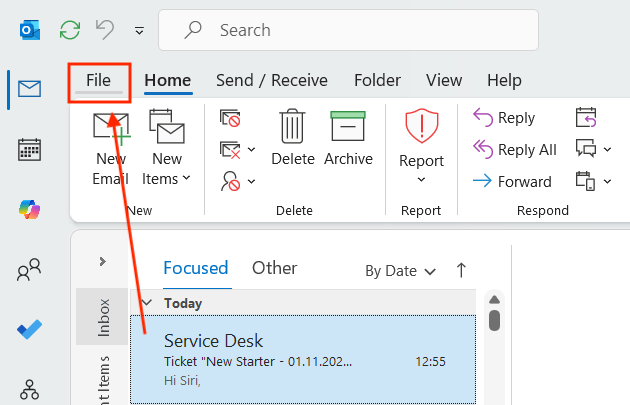
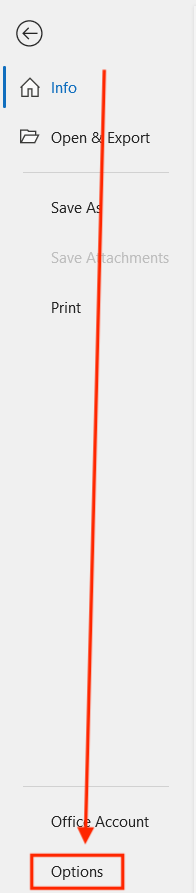
2, Under Email signature, click New and enter your signature.
- You can only have one signature per account.
- To automatically include your signature in all new messages, select Automatically include my signature on new messages I compose.
- To include your signature in replies and forwards, select Automatically include my signature on messages I forward or reply to.
- If you don’t select these, you can manually add your signature to specific messages (see below).
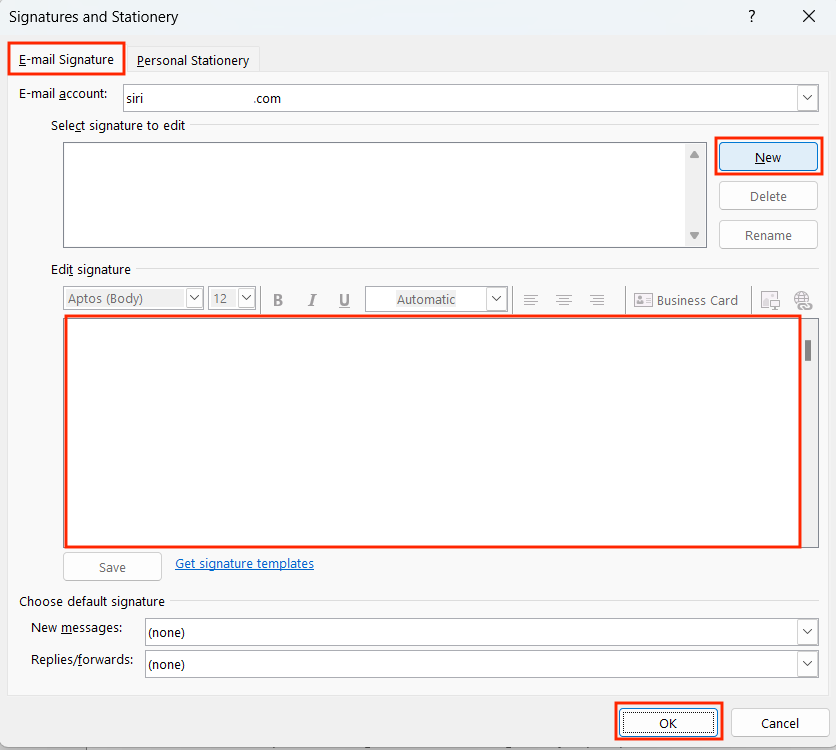
3, Click OK to finish.
Outlook (NEW):
1, Go to File → Settings.
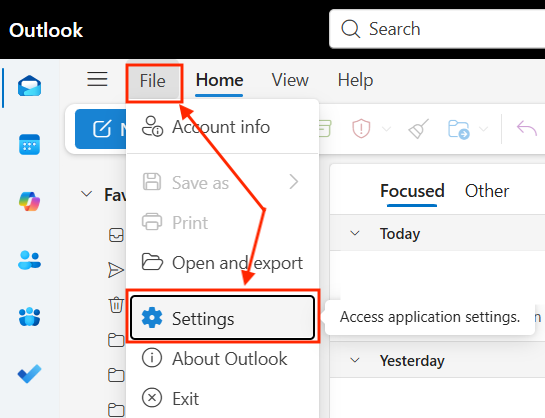
2, Go to Accounts, Signatures and under New signature, type your signature name, and write the signature.
- Only one signature per account is allowed.
- Select options to automatically include it in new messages or replies/forwards if desired.
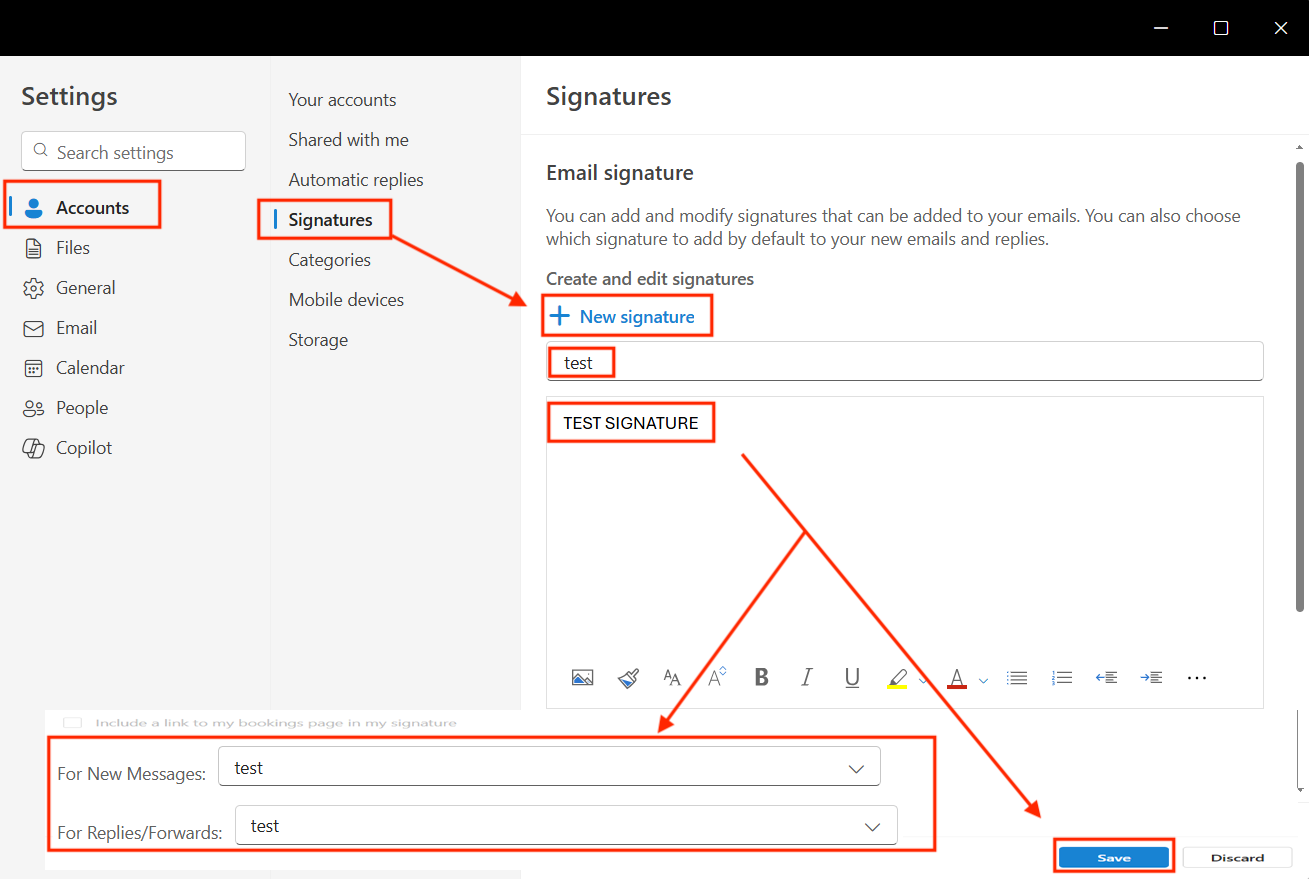
3, Click Save to finish.
MAC:
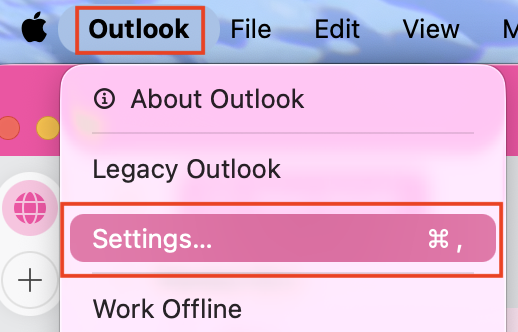
1, Click Outlook → Settings in the top-left corner.
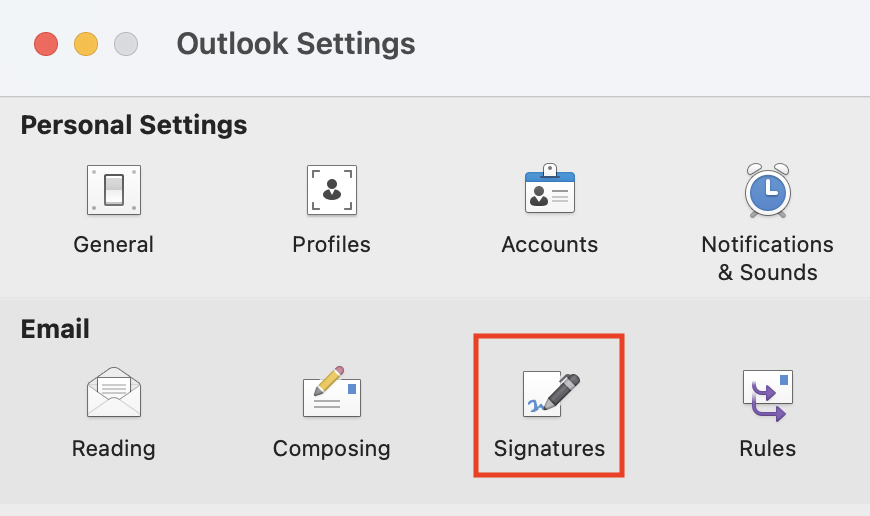
2, Select Signatures.
3, Click the plus sign (+) to create a new signature. Make sure you are on the right account.
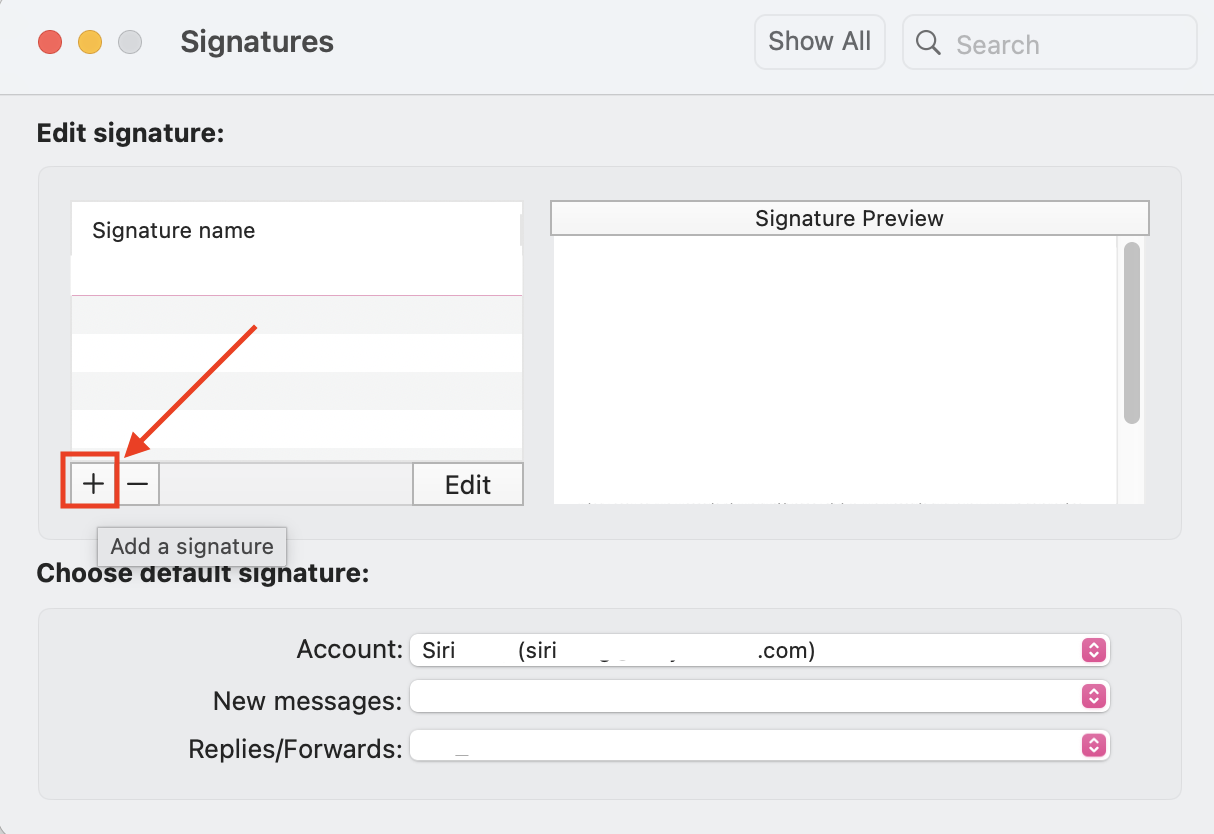
4, Paste in you signature.
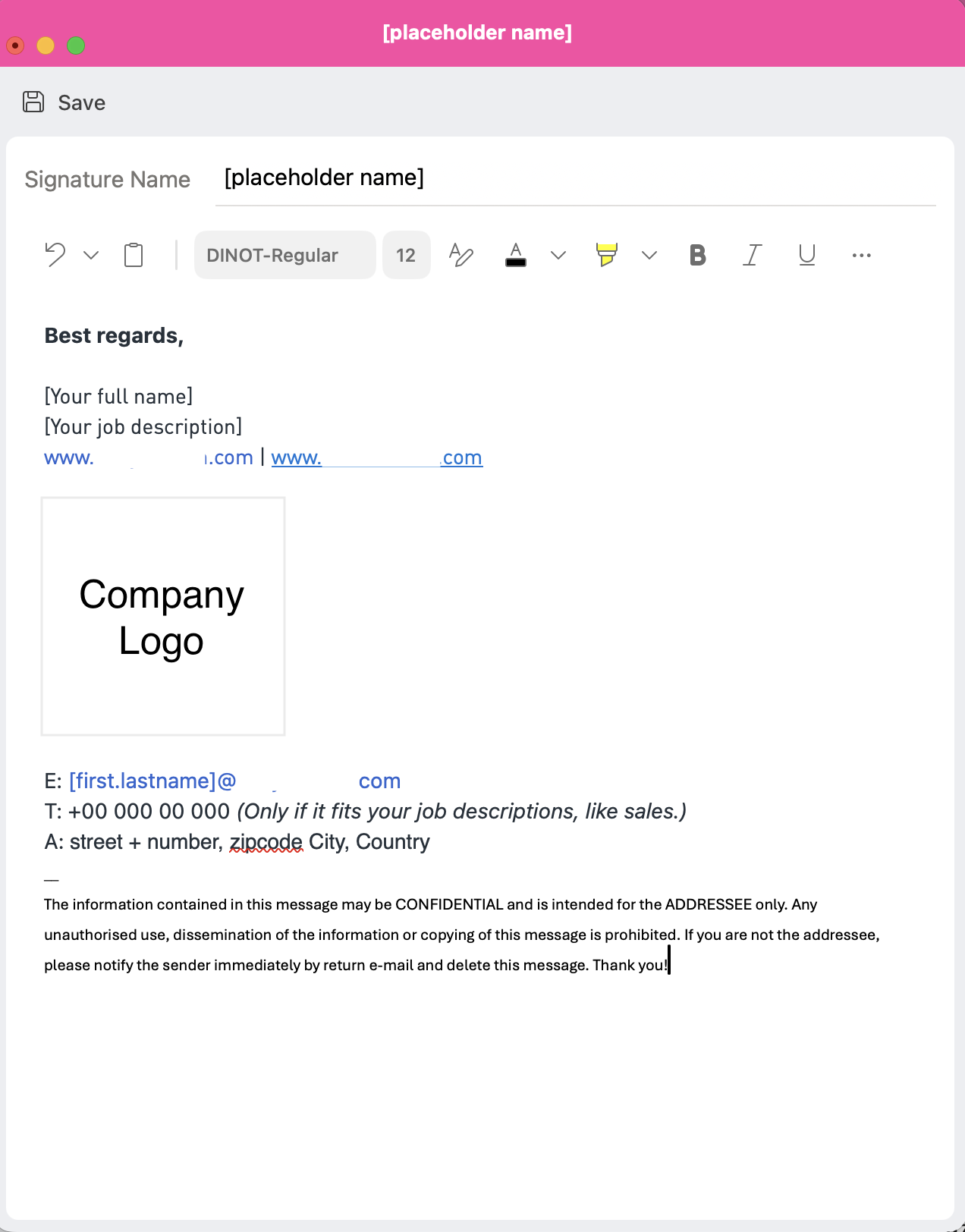
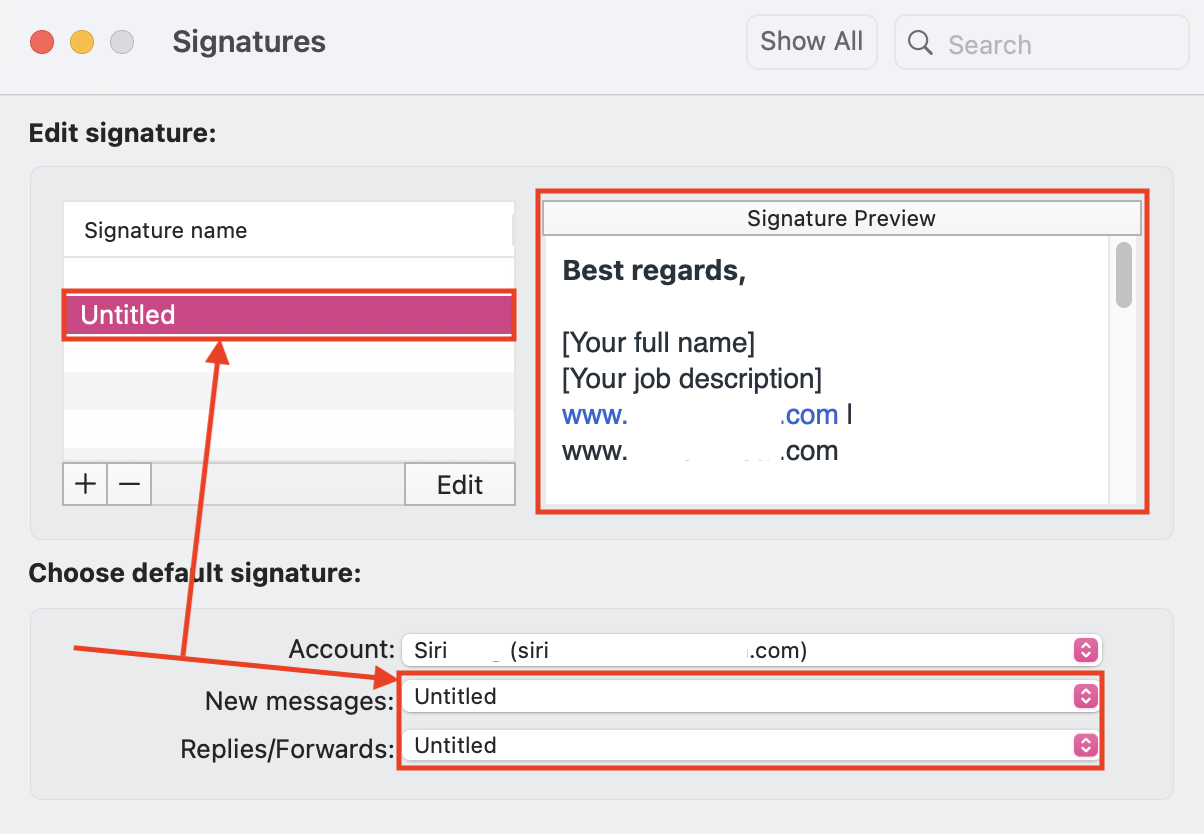
5, Ensure the new signature is selected for New messages and Replies/Forwards. In this example, the new signature is named "Untitled".
Manually Add a Signature to a Message:
Windows (Classic):
1, Open New message in Outlook.
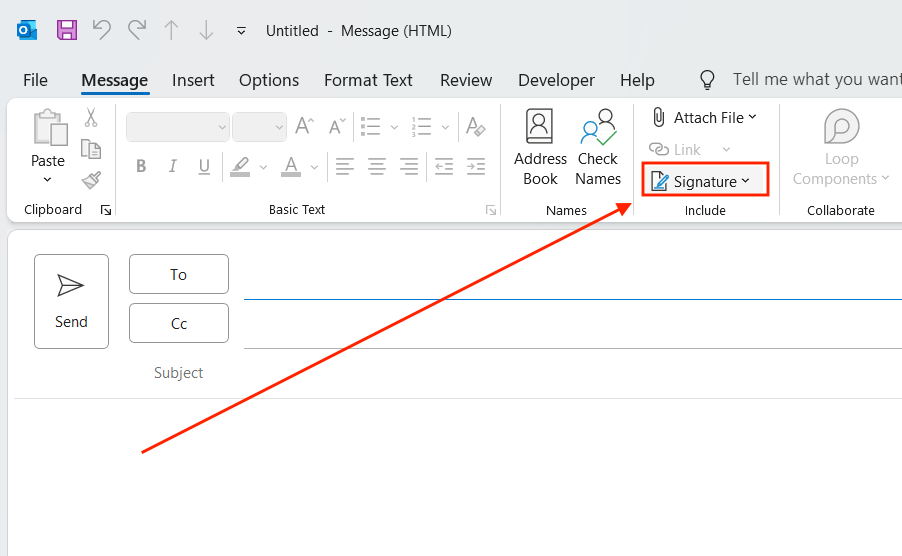
2, Type your email, then choose Signature and select your preferred signature.
3, Click Send when ready.
Windows (NEW):
1, Open New message.
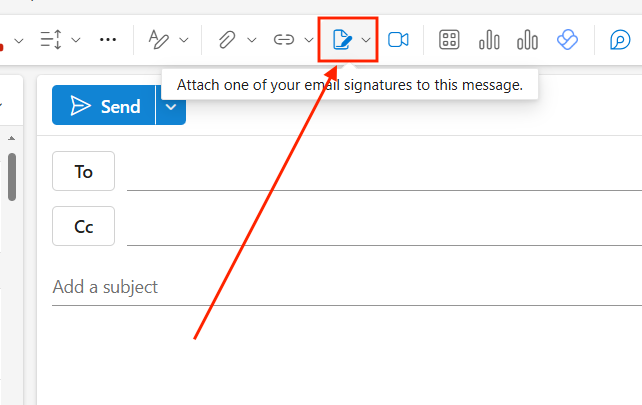
2, Type your email, then choose Insert signature and select the desired signature. In this example the signaure's name is "test".
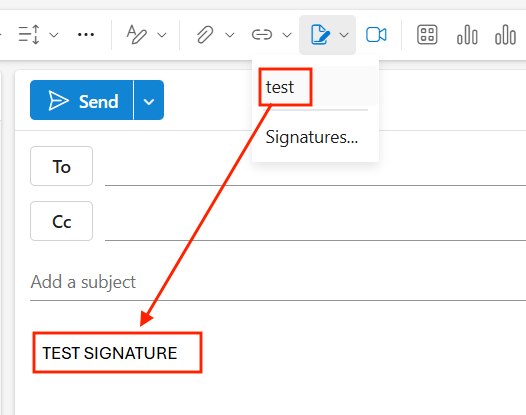
3, Click Send.
MAC:
1, Open New message.
2, Type your email, then choose Signature and select the preferred signature.
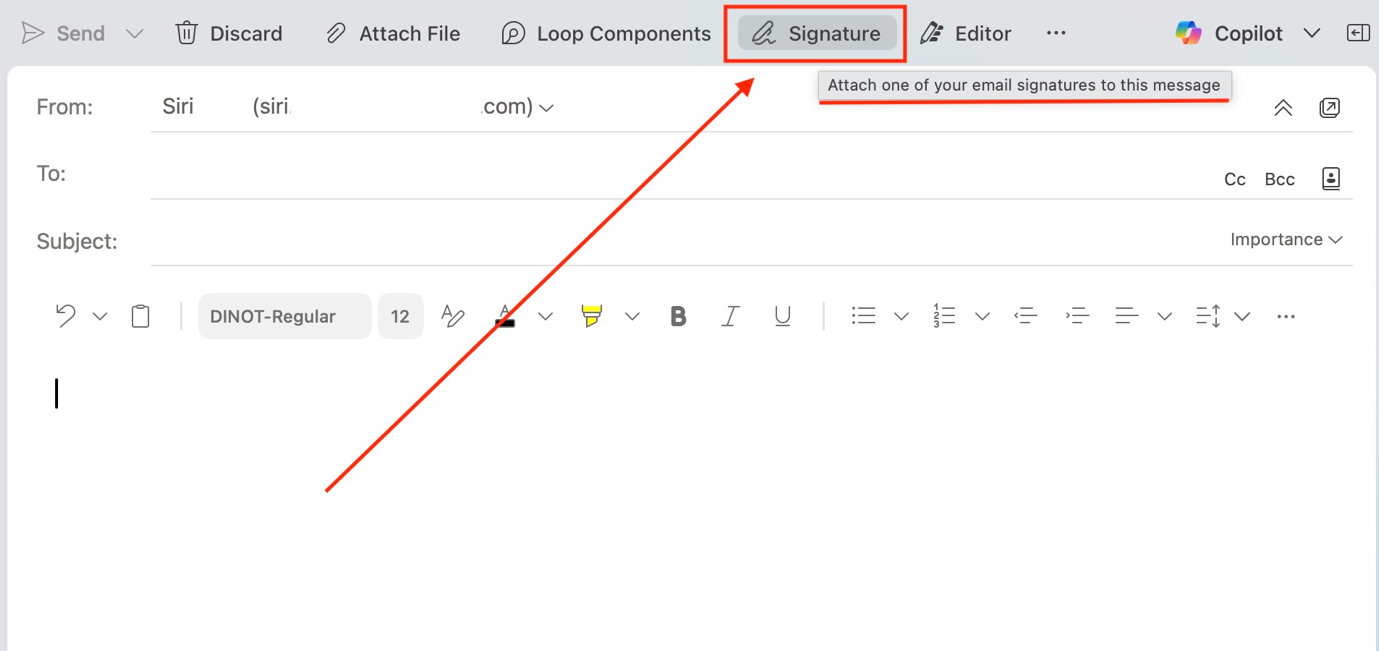
3, Click Send.
Suggested Signature:
Best regards,
[Your Full Name]
[Your Job Title]
www.company.com | www.company2.com
COMPANY LOGO
E: [first.lastname]@company.com
T: +00 000 00 000 (only if applicable)
A: Street + Number, Postcode City, Country
The information contained in this message may be CONFIDENTIAL and is intended for the ADDRESSEE only. Any unauthorised use, dissemination, or copying of this message is prohibited. If you are not the addressee, please notify the sender immediately by return e-mail and delete this message. Thank you!
And you are done 😄